Internship Progress Week 3 (July 16 ~ July 22)
This week, my work focused on verifying OpenGL rendering in Gazebo using a camera sensor across different installation methods, investigating the Gazebo Scene Viewer, and setting up standalone VNC servers and clients to run graphical applications.
1. Gazebo Camera Simulation: Source Build vs. Package Installation
The objective of this task was to replace the previous Lidar sensor with an OpenGL Camera sensor (<sensor type="camera">) on our differential drive robot, and verify its rendering capabilities under both installation environments on macOS.
Key Implementations:
- Camera Integration: Configured the camera inside the robot’s
.sdffile with a 640x480 resolution, a 1.05-radian horizontal field of view, and anR8G8B8color format. - Autonomous Navigation: Developed a Python control script
obstacle_avoidance.pythat listens to/robot/laserrange scans and publishes twist commands (/cmd_vel) to steer the camera robot dynamically around obstacles (Red Cube, Green Cylinder, Yellow Pillar).
Testing Environments:
- Source Build Workspace: Tested under the
gazebo_source_wsworkspace. To prevent macOS System Integrity Protection (SIP) from strippingDYLD_LIBRARY_PATHwhen calling the Ruby-wrappedgzCLI, we forced execution via the Homebrew Ruby interpreter (/opt/homebrew/bin/ruby). - Binary Packages: Tested natively using the Homebrew package installation of Gazebo (
gz-harmonic).
Video Documentation:
- Watch the simulation run and autonomous obstacle avoidance: Watch Video
2. Investigating the Gazebo Scene Viewer
I investigated the features of the Gazebo Scene Viewer (the 3D visualization canvas) to verify OpenGL hardware rendering efficiency:
- Visualizing Sensors: Enabled sensor visualization to view the yellow translucent camera frustum (field-of-view cone) projecting from the robot.
- Collision Outlines: Toggled collision geometries to inspect wireframe bounding boxes of the chassis, wheels, and obstacles.
- Image Display Plugin: Loaded the Image Display plugin in the GUI, subscribing to
/camera/image_rawto monitor the live camera feed within the scene viewport. - Performance Analysis (FPS): Inspected the FPS (Frames Per Second) counter in the bottom status bar. A steady 30-60 FPS verified active OpenGL hardware acceleration.
Video Documentation:
- Watch the Scene Viewer features and FPS check: Watch Video
3. Running Standalone VNC Server & Client (Outside Robotics Academy)
To test VNC functionality independently of the Robotics Academy framework, I set up a standalone Dockerized desktop container containing a VNC server and web client.
- VNC Server Setup: Started a container mapping the VNC RFB port (
5901) and the noVNC HTTP port (6080). - VNC Clients Verified:
- Web Client (noVNC): Accessed the desktop remotely using a standard web browser at
http://localhost:6080. - Native Client: Connected via the native macOS Screen Sharing client using
vnc://localhost:5901from Finder.
- Web Client (noVNC): Accessed the desktop remotely using a standard web browser at
Video Documentation:
- Watch the VNC server connection and client testing: Watch Video
4. Connecting RViz2 Camera Feed in Docker VNC
During integration of the camera sensor with RViz2, we resolved major platform issues when attempting to route sensor data between ROS 2 Humble and Gazebo.
The Problem: macOS Native DDS & Version Mismatches
When running Gazebo and ROS 2 natively on macOS, the camera visualization failed (showing “No Image”):
- Method 1 (Homebrew package): Mismatch between the legacy Ignition Fortress bridge packages in Conda and the newer Gazebo Harmonic package in Homebrew.
- Method 2 (Source build): Dynamic library loading paths collided between environments, causing symbol resolution errors and crashes.
- DDS Discovery: macOS local firewall settings blocked loopback UDP multicast discovery between terminal tabs.
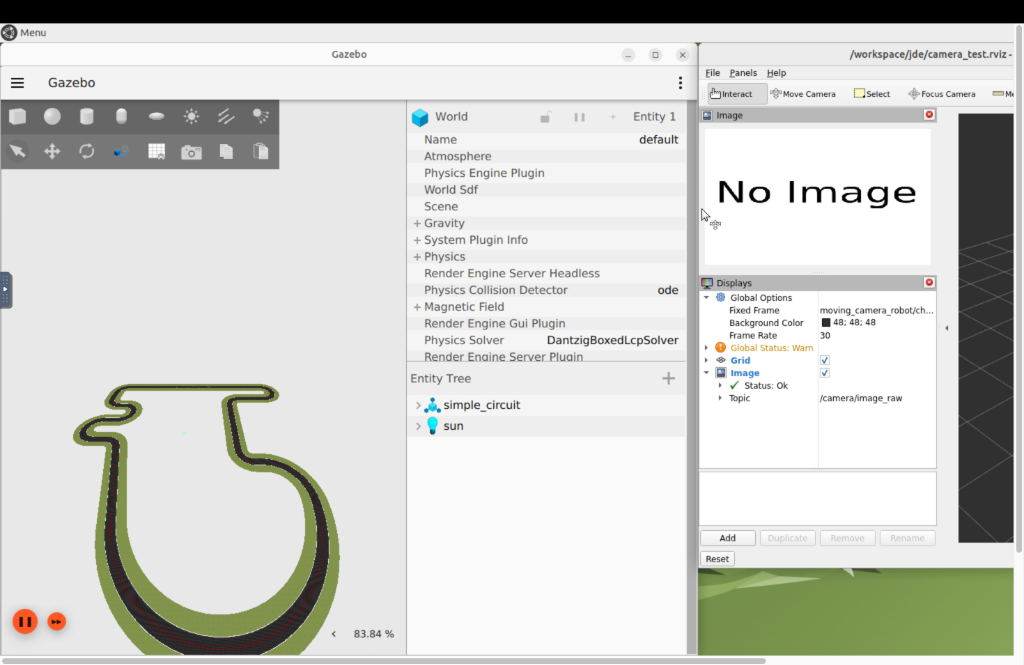 Figure: RViz2 displaying “No Image” due to version mismatch and paused simulation.
The Resolution: Docker VNC Container
We resolved these constraints by moving the simulation environment to a unified Docker VNC container:
- Version Locking: Locked all packages (Gazebo Sim, bridge, and RViz2) to the matching Ignition Fortress stack.
- Permission Sync: Ran all nodes under the same
ubuntuuser workspace to allow seamless ROS 2 DDS discovery. - Automated Setup: Loaded RViz2 automatically with a custom
camera_test.rvizconfiguration file. - Simulation Unpause: Triggered play commands to unpause simulation physics, successfully enabling active OpenGL rendering.
Video Documentation (Working Demo):
- Watch the working camera feed and obstacle avoidance simulation in RViz2: Watch Video